






























 深耕数码兴趣领域












16
19
Powershell实战:测试网络请求两个命令介绍
2025-03-28 14:11:29
5点赞
14收藏
0评论

今天继续给大家分享PowerShell相关命令,今天给大家介绍通过Powershell测试网络请求的两个命令Test-Connection、Test-NetConnection,希望对大家学习PowerShell知识能够提供一些帮助。
一、Test-Connection
1.1 简介
Test-Connection 命令将 Internet 控制消息协议 (ICMP) 回显请求数据包或 ping 发送给一台或多台远程计算机并返回回显响应回复。 我们可以使用该命令确定是否可通过 IP 网络ping通特定的计算机。
1.2 语法格式
Test-Connection
    [-TargetName]
    [-Ping]
    [-IPv4]
    [-IPv6]
    [-ResolveDestination]
    [-Source ]
    [-MaxHops ]
    [-Count ]
    [-Delay ]
    [-BufferSize ]
    [-DontFragment]
    [-TimeoutSeconds ]
    [-Quiet]
    []
1.3 示例
直接ping IP地址
test-connection 8.8.8.8

直接ping 域名
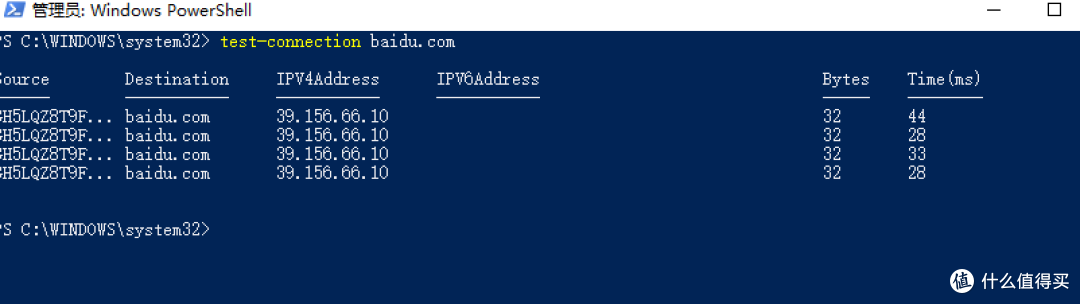
test-connection baidu.com
指定请求次数
test-connection baidu.com -count 5

说明:默认count次数为3次,可以通过该参数指定请求测试的个数
一次性ping多个请求目标
test-connection baidu.com,blog.csdn.net -count 5

说明:多个目标地址需要用逗号分隔
延时请求
test-connection baidu.com -count 3 -delay 3

说明:-delay参数用来指定两次 ping 操作之间的间隔时间,以秒为单位。
指定ping请求后需要展示的列
test-connection baidu.com -count 10 | ft IPV4Address,ResponseTime
说明:通过ft后指定需要显示的数据列,字段中间用逗号分隔

二、Test-NetConnection
2.1 简介
Test-NetConnection是一个非常强大的网络测试请求命令,对于ping、telnet、tracert都可以使用该命令完成相应的操作。
2.2语法格式
Test-NetConnection
    [[-ComputerName] ]
    [-TraceRoute]
    [-Hops ]
    [-InformationLevel ]
    []
2.3 用法示例
测试本机网络情况
PS C:UsersAdministrator> Test-NetConnection


ComputerName           : internetbeacon.msedge.net
RemoteAddress          : 13.107.4.52
InterfaceAlias         : WLAN
SourceAddress          : 192.168.10.4
PingSucceeded          : True
PingReplyDetails (RTT) : 79 ms


PS C:UsersAdministrator>

测试远程接口是否可以访问
测试远程接口访问对于运维人员来说非常重要,比如检测网站是否正常启动、数据库是否正常启动等等。
PS C:UsersAdministrator> Test-NetConnection programmerblog.xyz -port 443


ComputerName     : programmerblog.xyz
RemoteAddress    : 150.158.159.177
RemotePort       : 443
InterfaceAlias   : WLAN
SourceAddress    : 192.168.10.4
TcpTestSucceeded : True


PS C:UsersAdministrator>
测试远程网络连接
用来测试远程连接是否可以正常访问。
PS C:UsersAdministrator> Test-NetConnection baidu.com


ComputerName           : baidu.com
RemoteAddress          : 39.156.66.10
InterfaceAlias         : WLAN
SourceAddress          : 192.168.10.4
PingSucceeded          : True
PingReplyDetails (RTT) : 28 ms

测试路由追踪
测试访问域名实际的路由信息
 C:UsersAdministrator> Test-NetConnection programmerblog.xyz -traceroute

                                                                                                                        ComputerName           : programmerblog.xyz                                                                             RemoteAddress          : 110.152.159.177                                                                                InterfaceAlias         : WLAN                                                                                           SourceAddress          : 192.168.10.4                                                                                   PingSucceeded          : True                                                                                           PingReplyDetails (RTT) : 24 ms
TraceRoute             : 192.168.10.1
                         192.168.1.1
                         0.0.0.0
                         0.0.0.0
                         0.0.0.0
                         0.0.0.0
                         183.207.64.241
                         0.0.0.0
                         0.0.0.0
                         36.155.156.162
                         10.200.162.198
                         0.0.0.0
                         30.1.132.177
                         0.0.0.0
                         10.162.67.46
                         0.0.0.0
                         0.0.0.0
                         110.152.159.177
作者声明本文无利益相关,欢迎值友理性交流,和谐讨论~