










 深耕数码、AI兴趣领域









7
5
解锁高效信息管理,满满极客风。自托管个人聚合页Glance 部署全攻略!
2024-08-08 14:40:18
16点赞
146收藏
0评论
大家好,我是羊刀仙。
本篇介绍一个非常耐斯的自托管仪表板,可以将你的所有信息放在一个地方。包括:RSS订阅,Reddit子版块帖子,天气,书签,新闻,特定频道的最新油管视频,时钟,日历,股票信息,Twitch频道和热门游戏,GitHub发布更新,存储库,搜索框等。
我的Demo:https://glance.ydxian.xyz
效果图如下,很多内容我没添加,里面博客内容点击无法访问,是被我玩炸了 抽时间恢复一下

项目特点
各种小部件,上面提到过
支持众多主题,样式丰富
X86和ARM平台皆可部署,十分轻量且兼容性强
针对移动设备进行了优化,适配可以说非常棒

部署流程
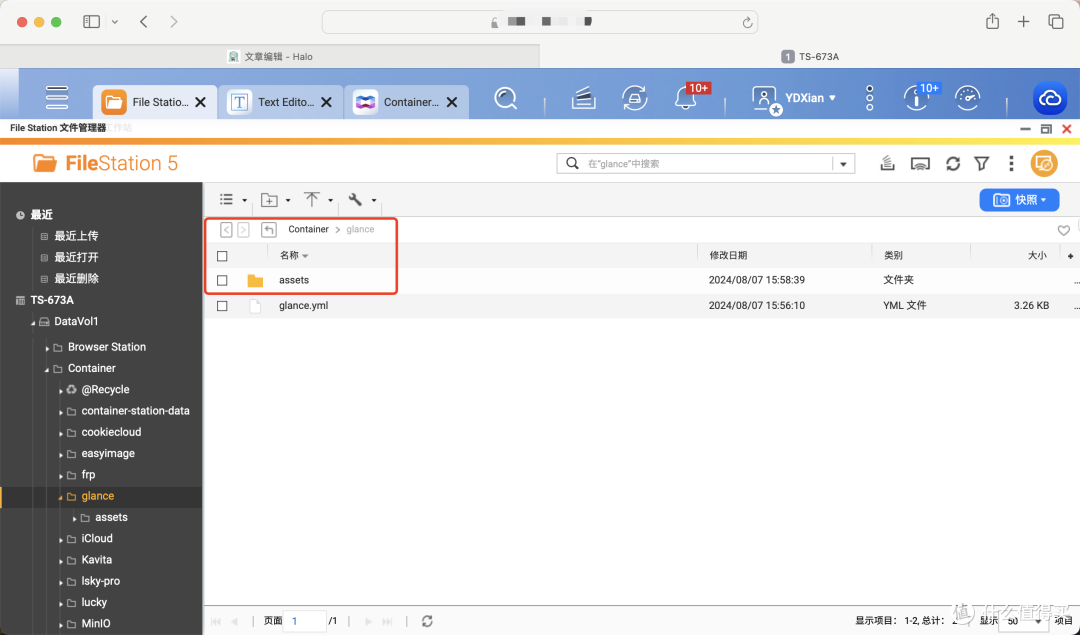
本篇以威联通NAS为例,其他平台大同小异。
首先,打开文件总管创建一个文件目录,命名为glance,便于今后管理。
⭕️对Glance进行配置
Glance的配置通过单个YAML文件完成,修改glance.yml文件后,需要重新启动Docker容器才能使更改生效。尝试使用无效的配置文件启动服务器将导致错误。
打开威联通的文本编辑工具Text Editor,新建一个档用于写配置,建议大家读读配置文档:https://github.com/glanceapp/glance/blob/main/docs/configuration.md#preconfigured-page
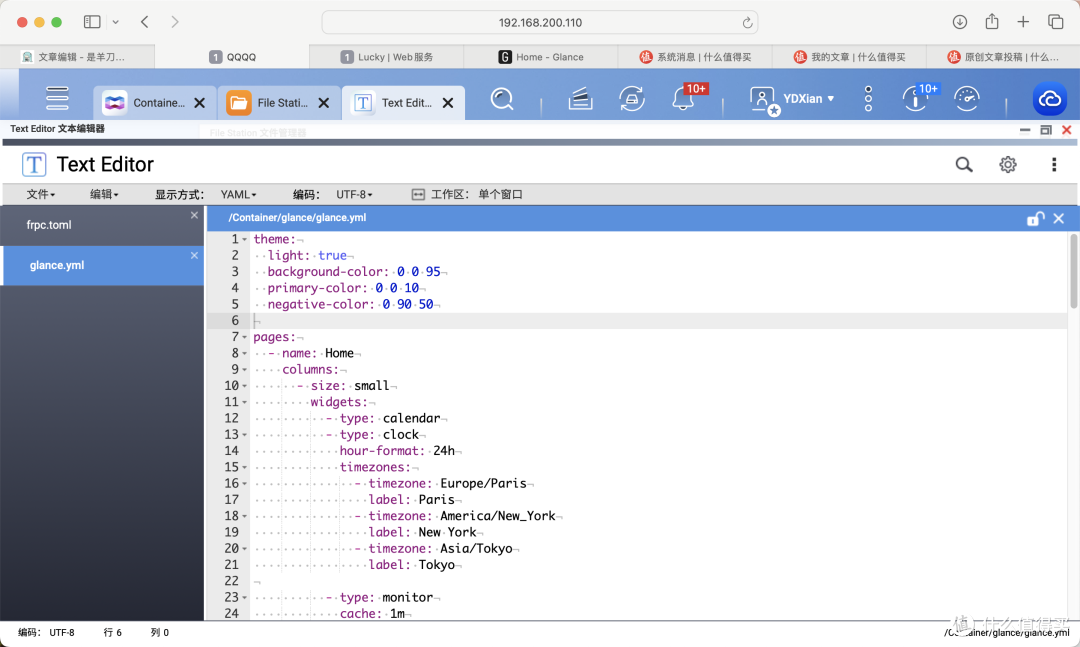
这里重点提醒,关于配置文件中的内容,在对齐格式及空格方面极为敏感,注释也不能留,各位部署时一定要注意!!!
各位可参考官方代码,下面是我根据自己需求所修改的界面配置,无注释版下面通过文本文件分享:
theme: # 主题
  light: true
  background-color: 0 0 95
  primary-color: 0 0 10
  negative-color: 0 90 50

pages: # 主页,可设置多个
  - name: Home # 主页名
    columns: # 板块,每个主页至多3个,竖排列
      - size: small # small和full定义宽度
        widgets:
          - type: calendar # 日历
          - type: clock # 时钟
            hour-format: 24h # 24小时制
            timezones: # 其它时区时间
              - timezone: Europe/Paris
                label: Paris
              - timezone: America/New_York
                label: New York
              - timezone: Asia/Tokyo
                label: Tokyo

          - type: monitor # 服务监控
            cache: 1m
            title: Services
            sites:
              - title: Jellyfin
                url: https://jellyfin.yourdomain.com
                icon: si:jellyfin # 图标可自定义放在assets文件下,也可以在线url或极简图标
              - title: Gitea
                url: https://gitea.yourdomain.com
                icon: /assets/gitea-logo.png # 这里我偷懒了,只搞了jellyfin
              - title: Immich
                url: https://immich.yourdomain.com
                icon: /assets/immich-logo.png
              - title: AdGuard Home
                url: https://adguard.yourdomain.com
                icon: /assets/adguard-logo.png
              - title: Vaultwarden
                url: https://vault.yourdomain.com
                icon: /assets/vaultwarden-logo.png

          - type: bookmarks # 书签,可放置你的常用网址
            groups:
              - links:
                  - title: Gmail
                    url: https://mail.google.com/mail/u/0/
                  - title: Amazon
                    url: https://www.amazon.com/
                  - title: Github
                    url: https://github.com/
                  - title: Wikipedia
                    url: https://en.wikipedia.org/
              - title: Entertainment # 娱乐项目
                color: 10 70 50
                links:
                  - title: Netflix
                    url: https://www.netflix.com/
                  - title: Disney+
                    url: https://www.disneyplus.com/
                  - title: YouTube
                    url: https://www.youtube.com/
                  - title: Prime Video
                    url: https://www.primevideo.com/
              - title: Social # 社交
                color: 200 50 50
                links:
                  - title: Reddit
                    url: https://www.reddit.com/
                  - title: Twitter
                    url: https://twitter.com/
                  - title: Instagram
                    url: https://www.instagram.com/


      - size: full # 中部大版块
        widgets:
          - type: search # 搜索框
            search-engine: duckduckgo # 这里我直接用的官方,没修改
            bangs:
              - title: YouTube
                shortcut: "!yt"
                url: https://www.youtube.com/results?search_query={QUERY}
          - type: rss # 订阅,是我自己的博客订阅链接
            title: News
            style: vertical-list
            limit: 10
            collapse-after: 10
            cache: 3h
            feeds:
              - url: https://blog.ydxian.xyz/rss.xml # 订阅链接
                title: 博客被我玩炸了 # 这里一般放博客名
          - type: videos
            channels:
              - UCsLWG2t7n9LFsvH0wR2rtpw # 油管频道的订阅号

      - size: small # 第三板块
        widgets:
          - type: weather # 天气
            location: Yantai, China

          - type: releases # github常用的项目监控
            repositories:
              - immich-app/immich
              - go-gitea/gitea
              - dani-garcia/vaultwarden
              - jellyfin/jellyfin

          - type: markets # 股市
            markets:
              - symbol: NVDA
                name: NVIDIA
              - symbol: AAPL
                name: Apple
              - symbol: MSFT
                name: Microsoft
              - symbol: GOOGL
                name: Google
              - symbol: AMD
                name: AMD
关于页面版式的示意图如下。

无注释版本点我,提取码: qpe7。
照着官方文档一点点修改,还是蛮有趣的。大家按自己的需求修改完了粘贴进去,另命名glance.yml存档到glance目录下即可。
⭕️部署Glance
打开Container Station,创建新的应用程序

代码如下:
version: '3'

services:
  glance:
    image: glanceapp/glance
    container_name: glance
    restart: unless-stopped
    ports:
      - 9090:8080        # 冒号左侧可改
    volumes:
      - /share/Container/glance/glance.yml:/app/glance.yml
      - /share/Container/glance/assets:/app/assets
      - /etc/TZ:/etc/timezone:ro # 获取设备时区
      - /etc/localtime:/etc/localtime:ro # 获取设备时间
部署完毕后,便可通过 NAS_IP:9090 访问主页。
反向代理
参考之前的文章
放一张配置截图

后端地址注意要填写完整的本地访问地址,修改保存规则后就可随时通过域名HTTPS访问
最后
这是我近来发现的比较满意的一个聚合页了,功能插件较多,排版很合理,多端体验也非常不错。
如果大伙儿觉得本篇内容还不错,别忘了三连支持下,能点点关注就更好了!后续我还会持续分享各类教程以及有趣好玩的项目,感谢观看,咱们下期见~
本文完