



























 深耕数码、AI兴趣领域













2
4
惊了,扩展性极高!NAS 部署 OliveTin,轻松执行自定义命令
2025-06-10 11:05:28
2点赞
5收藏
2评论
Hello 大家好,我是 David
订阅我的频道 ,分享更多 NAS 教程和资讯 ~
OliveTin:
允许从 Web 界面安全简单地访问预定义的 shell 命令。它适用于多种场景,能够为技术水平较低的用户提供安全的命令访问权限,同时简化复杂命令,使其更易于访问和重复执行。
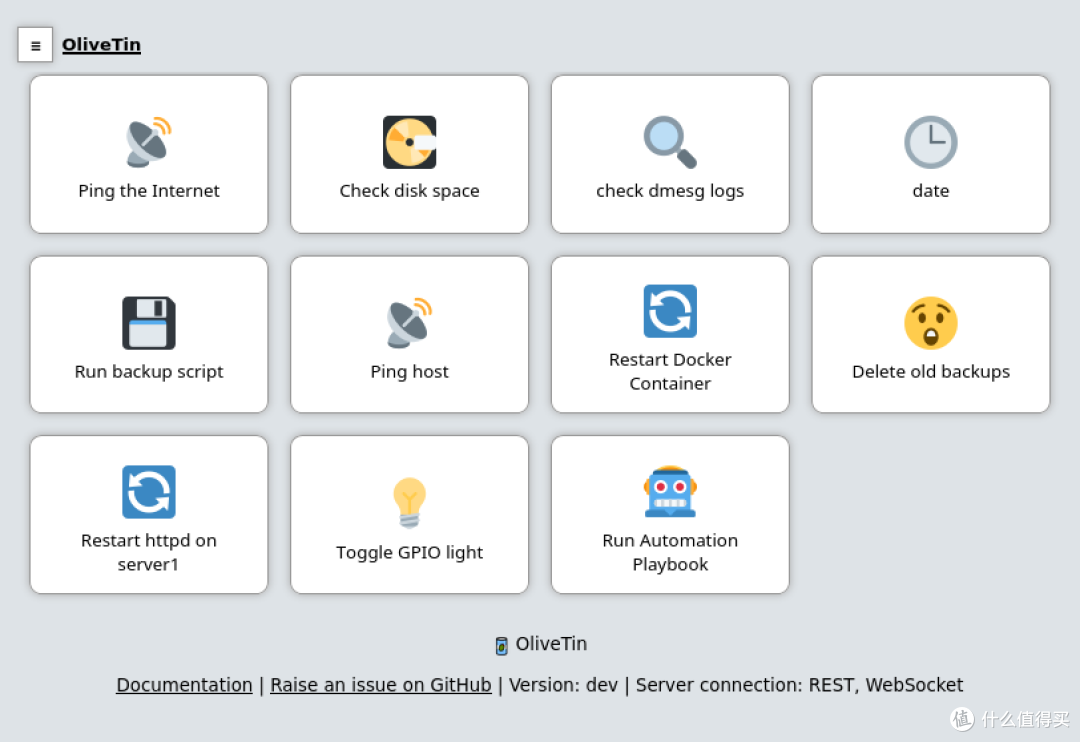
特性:
响应式、触摸友好型 UI - 非常适合平板电脑和移动设备
YAML 中的超级简单配置 - 因为如果它现在不是 YAML,它就不是“云原生” :-)
深色模式 - 适合那些以这种方式滚动的人。
可访问 - 通过 Firefox 中的所有可访问性检查,并且会认真对待可访问性问题。
容器 - 可用于快速测试并启动和运行它,非常适合自托管社区。
与任何东西集成 - OliveTin 只运行 Linux shell 命令,所以理论上你可以通过使用 curl、ping 等来集成一堆东西。但是,编写自己的 shell 脚本是扩展 OliveTin 的好方法。
轻量级资源 - 仅使用几 MB 的 RAM,几乎不使用任何 CPU。用 Go 编写,Web 界面编写为使用 REST/gRPC API 的现代响应式单页应用程序。
大量的单元测试和样式检查 - 帮助潜在的贡献者保持一致,并有助于提高可维护性。
安装
Docker Compose
services:
 olivetin:
  image: jamesread/olivetin:latest
  container_name: olivetin
  ports:
   - 1337:1337
  volumes:
   - /vol1/1000/docker/olivetin:/config
   - /var/run/docker.sock:/var/run/docker.sock
  privileged: true
  restart: unless-stopped
参数说明(更多参数设置建议去看文档)
/config(路径):存放配置文件
/var/run/docker.sock(路径,可选):配置 Docker 应用
部署前需要先配置 config.yaml 文件,可以从 Github 下载(也可以直接复制下面代码)
https://github.com/OliveTin/OliveTin/blob/main/config.yaml
# There is a built-in micro proxy that will host the webui and REST API all on
# one port (this is called the "Single HTTP Frontend") and means you just need
# one open port in the container/firewalls/etc.
#
# Listen on all addresses available, port 1337
listenAddressSingleHTTPFrontend: 0.0.0.0:1337

# Choose from INFO (default), WARN and DEBUG
logLevel: "INFO"

# Checking for updates https://docs.olivetin.app/reference/updateChecks.html
checkForUpdates: false

# Actions are commands that are executed by OliveTin, and normally show up as
# buttons on the WebUI.
#
# Docs: https://docs.olivetin.app/action_execution/create_your_first.html
actions:
  # This is the most simple action, it just runs the command and flashes the
  # button to indicate status.
  #
  # If you are running OliveTin in a container remember to pass through the
  # docker socket! https://docs.olivetin.app/solutions/container-control-panel/index.html
  - title: Ping the Internet
    shell: ping -c 3 1.1.1.1
    icon: ping
    popupOnStart: execution-dialog-stdout-only

  # This uses `popupOnStart: execution-dialog-stdout-only` to simply show just
  # the command output.
  - title: Check disk space
    icon: disk
    shell: df -h /media
    popupOnStart: execution-dialog-stdout-only

  # This uses `popupOnStart: execution-dialog` to show a dialog with more
  # information about the command that was run.
  - title: check dmesg logs
    shell: dmesg | tail
    icon: logs
    popupOnStart: execution-dialog

  # This uses `popupOnStart: execution-button` to display a mini button that
  # links to the logs.
  #
  # You can also rate-limit actions too.
  - title: date
    shell: date
    timeout: 6
    icon: clock
    popupOnStart: execution-button
    maxRate:
      - limit: 3
        duration: 5m

  # You are not limited to operating system commands, and of course you can run
  # your own scripts. Here `maxConcurrent` stops the script running multiple
  # times in parallel. There is also a timeout that will kill the command if it
  # runs for too long.
  - title: Run backup script
    shell: /opt/backupScript.sh
    shellAfterCompleted: "apprise -t 'Notification: Backup script completed' -b 'The backup script completed with code {{ exitCode}}. The log is: n {{ output }} '"
    maxConcurrent: 1
    timeout: 10
    icon: backup
    popupOnStart: execution-dialog

  # When you want to prompt users for input, that is when you should use
  # `arguments` - this presents a popup dialog and asks for argument values.
  #
  # Docs: https://docs.olivetin.app/action_examples/ping.html
  - title: Ping host
    id: ping_host
    shell: ping {{ host }} -c {{ count }}
    icon: ping
    timeout: 100
    popupOnStart: execution-dialog-stdout-only
    arguments:
      - name: host
        title: Host
        type: ascii_identifier
        default: example.com
        description: The host that you want to ping

      - name: count
        title: Count
        type: int
        default: 3
        description: How many times to do you want to ping?

  # OliveTin can control containers - docker is just a command line app.
  #
  # However, if you are running in a container you will need to do some setup,
  # see the docs below.
  #
  # Docs: https://docs.olivetin.app/solutions/container-control-panel/index.html
  - title: Restart Docker Container
    icon: restart
    shell: docker restart {{ container }}
    arguments:
      - name: container
        title: Container name
        choices:
          - value: plex
          - value: traefik
          - value: grafana

  # There is a special `confirmation` argument to help against accidental clicks
  # on "dangerous" actions.
  #
  # Docs: https://docs.olivetin.app/args/input_confirmation.html
  - title: Delete old backups
    icon: ashtonished
    shell: rm -rf /opt/oldBackups/
    arguments:
      - type: html
        title: Description
        default:
          The documentation for this action can be found at example.com.
      - type: confirmation
        title: Are you sure?!

  # This is an action that runs a script included with OliveTin, that will
  # download themes. You will still need to set theme "themeName" in your config.
  #
  # Docs: https://docs.olivetin.app/reference/reference_themes_for_users.html
  - title: Get OliveTin Theme
    shell: olivetin-get-theme {{ themeGitRepo }} {{ themeFolderName }}
    icon: theme
    arguments:
      - name: themeGitRepo
        title: Theme's Git Repository
        description: Find new themes at https://www.olivetin.app/themes
        type: url

      - name: themeFolderName
        title: Theme's Folder Name
        type: ascii_identifier

  # Sometimes you want to run actions on other servers - don't overcomplicate
  # it, just use SSH! OliveTin includes a helper to make this easier, which is
  # entirely optional. You can also setup SSH manually.
  #
  # Docs: https://docs.olivetin.app/action_examples/ssh-easy.html
  # Docs: https://docs.olivetin.app/action_examples/ssh-manual.html
  - title: "Setup easy SSH"
    icon: ssh
    shell: olivetin-setup-easy-ssh
    popupOnStart: execution-dialog

  # Here's how to use SSH with the "easy" config, to restart a service on
  # another server.
  #
  # Docs: https://docs.olivetin.app/action_examples/ssh-easy.html
  # Docs: https://docs.olivetin.app/action_examples/systemd_service.html
  - title: Restart httpd on server1
    id: restart_httpd
    icon: restart
    timeout: 1
    shell: ssh -F /config/ssh/easy.cfg root@server1 'service httpd restart'

  # Lots of people use OliveTin to build web interfaces for their electronics
  # projects. It's best to install OliveTin as a native package (eg, .deb), and
  # then you can use either a python script or the `gpio` command.
  - title: Toggle GPIO light
    shell: gpioset gpiochip1 9=1
    icon: light

  # There are several built-in shortcuts for the `icon` option, but you
  # can also just specify any HTML, this includes any unicode character,
  # or a  link to a custom icon.
  #
  # Docs: https://docs.olivetin.app/action_customization/icons.html
  #
  # Lots of people use OliveTin to easily execute ansible-playbooks. You
  # probably want a much longer timeout as well (so that ansible completes).
  #
  # Docs: https://docs.olivetin.app/action_examples/ansible.html
  - title: "Run Automation Playbook"
    icon: '🤖'
    shell: ansible-playbook -i /etc/hosts /root/myRepo/myPlaybook.yaml
    timeout: 120

  # The following actions are "dummy" actions, used in a Dashboard. As long as
  # you have these referenced in a dashboard, they will not show up in the
  # `actions` view.
  - title: Ping hypervisor1
    shell: echo "hypervisor1 online"

  - title: Ping hypervisor2
    shell: echo "hypervisor2 online"

  - title: "{{ server.name }} Wake on Lan"
    shell: echo "Sending Wake on LAN to {{ server.hostname }}"
    entity: server

  - title: "{{ server.name }} Power Off"
    shell: "echo 'Power Off Server: {{ server.hostname }}'"
    entity: server

  - title: Ping All Servers
    shell: "echo 'Ping all servers'"
    icon: ping

  - title: Start {{ container.Names }}
    icon: box
    shell: docker start {{ container.Names }}
    entity: container
    triggers: ["Update container entity file"]

  - title: Stop {{ container.Names }}
    icon: box
    shell: docker stop {{ container.Names }}
    entity: container
    triggers: ["Update container entity file"]

  # Lastly, you can hide actions from the web UI, this is useful for creating
  # background helpers that execute only on startup or a cron, for updating
  # entity files.

  # - title: Update container entity file
  #   shell: 'docker ps -a --format json > /etc/OliveTin/entities/containers.json'
  #   hidden: true
  #   execOnStartup: true
  #   execOnCron: '*/1 * * * *'

# An entity is something that exists - a "thing", like a VM, or a Container
# is an entity. OliveTin allows you to then dynamically generate actions based
# around these entities.
#
# This is really useful if you want to generate wake on lan or poweroff actions
# for `server` entities, for example.
#
# A very popular use case that entities were designed for was for `container`
# entities - in a similar way you could generate `start`, `stop`, and `restart`
# container actions.
#
# Entities are just loaded fome files on disk, OliveTin will also watch these
# files for updates while OliveTin is running, and update entities.
#
# Entities can have properties defined in those files, and those can be used
# in your configuration as variables. For example; `container.status`,
# or `vm.hostname`.
#
# Docs: https://docs.olivetin.app/entities/intro.html
entities:
  # YAML files are the default expected format, so you can use .yml or .yaml,
  # or even .txt, as long as the file contains valid a valid yaml LIST, then it
  # will load properly.
  #
  # Docs: https://docs.olivetin.app/entities/intro.html
  - file: entities/servers.yaml
    name: server

  - file: entities/containers.json
    name: container

# Dashboards are a way of taking actions from the default "actions" view, and
# organizing them into groups - either into folders, or fieldsets.
#
# The only way to properly use entities, are to use them with a `fieldset` on
# a dashboard.
#
# Docs: https://docs.olivetin.app/dashboards/intro.html
dashboards:
  # Top level items are dashboards.
  - title: My Servers
    contents:
      - title: All Servers
        type: fieldset
        contents:
          # The contents of a dashboard will try to look for an action with a
          # matching title IF the `contents: ` property is empty.
          - title: Ping All Servers

          # If you create an item with some "contents:", OliveTin will show that as
          # directory.
          - title: Hypervisors
            contents:
              - title: Ping hypervisor1
              - title: Ping hypervisor2

      # If you specify `type: fieldset` and some `contents`, it will show your
      # actions grouped together without a folder.
      - type: fieldset
        entity: server
        title: 'Server: {{ server.hostname }}'
        contents:
          # By default OliveTin will look for an action with a matching title
          # and put it on the dashboard.
          #
          # Fieldsets  also support `type: display`, which can display arbitary
          # text. This is useful for displaying things like a container's state.
          - type: display
            title: |
              Hostname: {{ server.name }}
              IP Address: {{ server.ip }}

          # These are the actions (defined above) that we want on the dashboard.
          - title: '{{ server.name }} Wake on Lan'
          - title: '{{ server.name }} Power Off'

  # This is the second dashboard.
  - title: My Containers
    contents:
      - title: 'Container {{ container.Names }} ({{ container.Image }})'
        entity: container
        type: fieldset
        contents:
          - type: display
            title: |
              {{ container.RunningFor }}

{{ container.State }}

          - title: 'Start {{ container.Names }}'
          - title: 'Stop {{ container.Names }}'
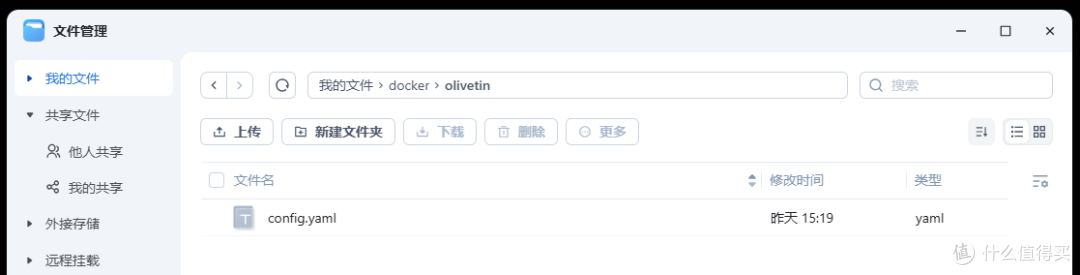
将 config.yaml 文件放到 /config 目录里面
使用
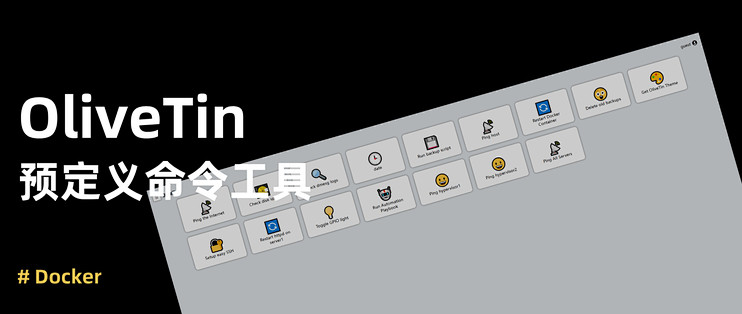
浏览器中输入 http://NAS的IP:1337 就能看到界面
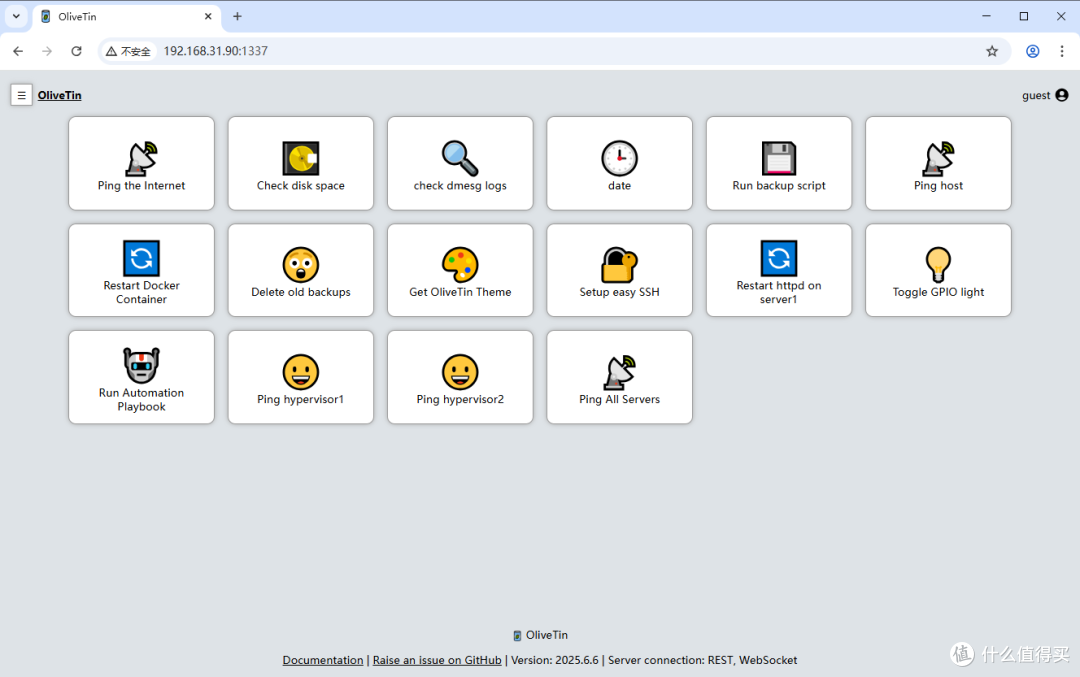
原本的 config.yaml 配置文件是已经预置一些命令
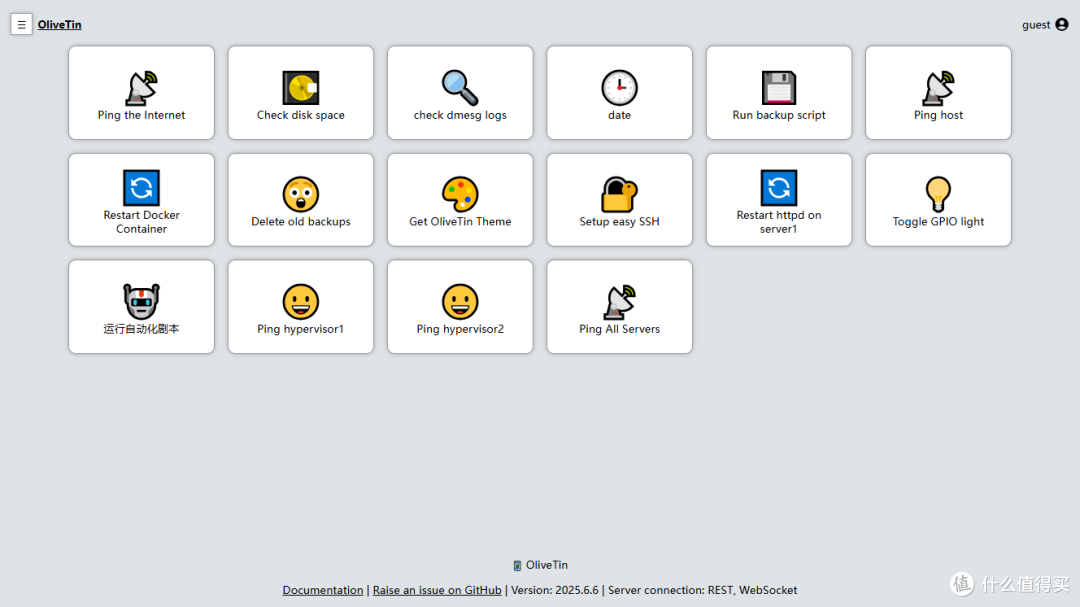
TIP:
上面的命令不一定都适合自己的设备使用,后面需要根据自行需要进行修改
Ping 网络,查看连通情况
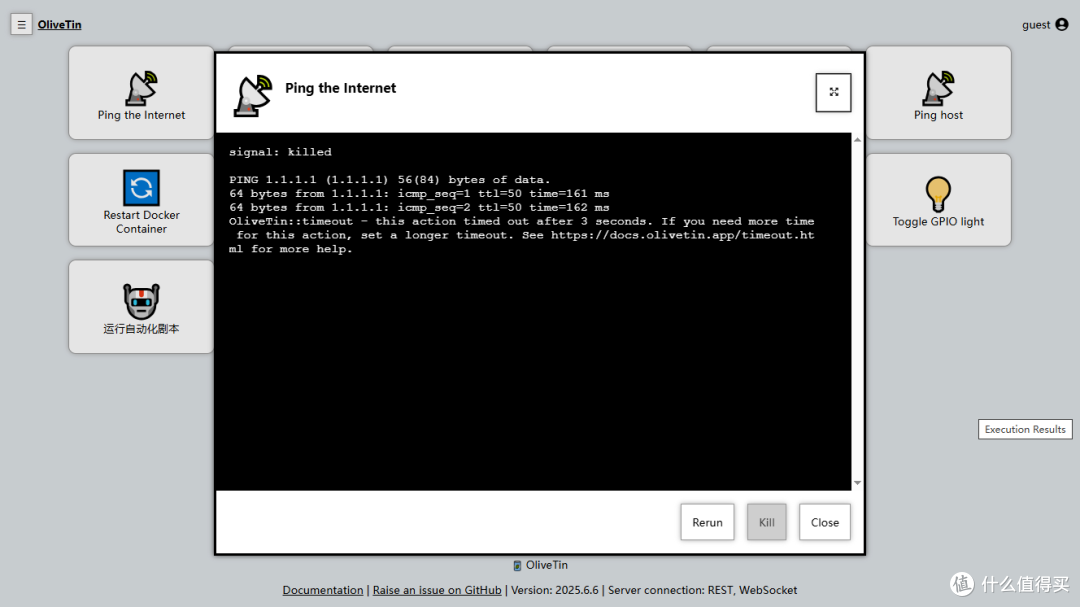
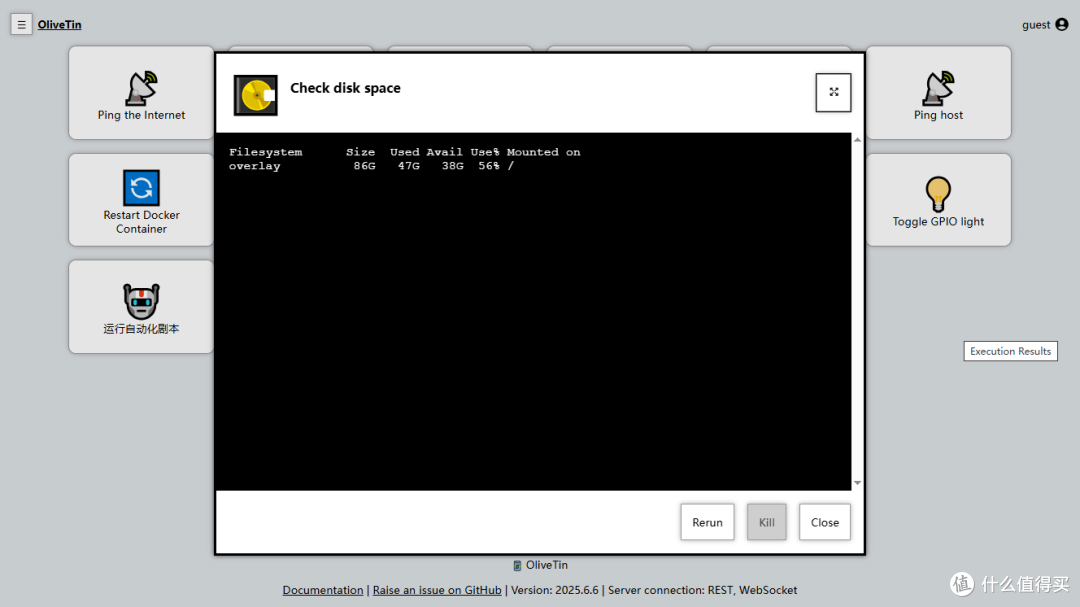
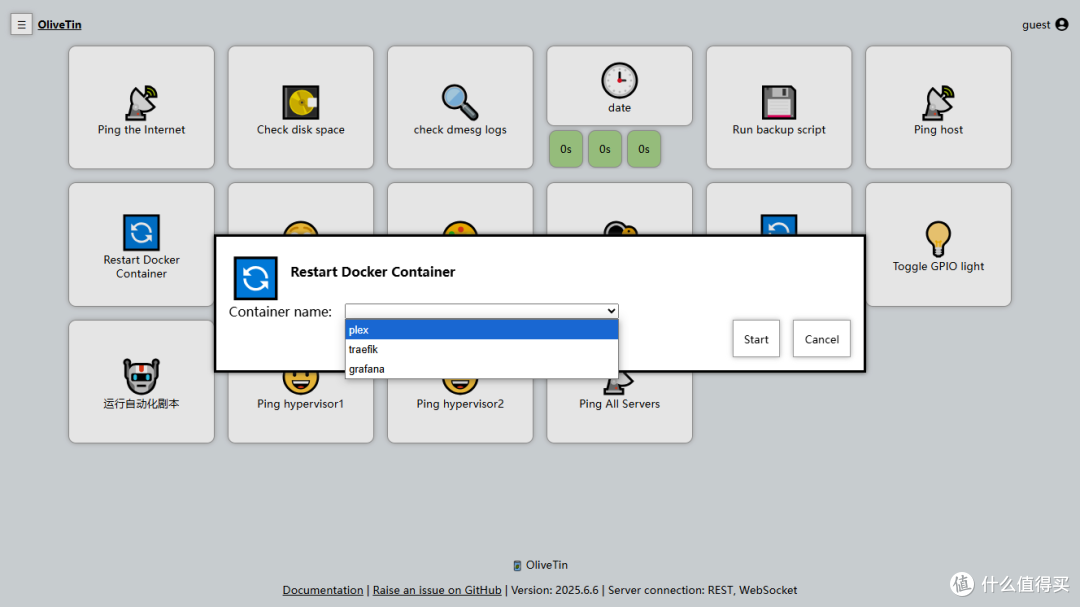
重启 Docker 应用,里面的容器名称也需要自己有才行
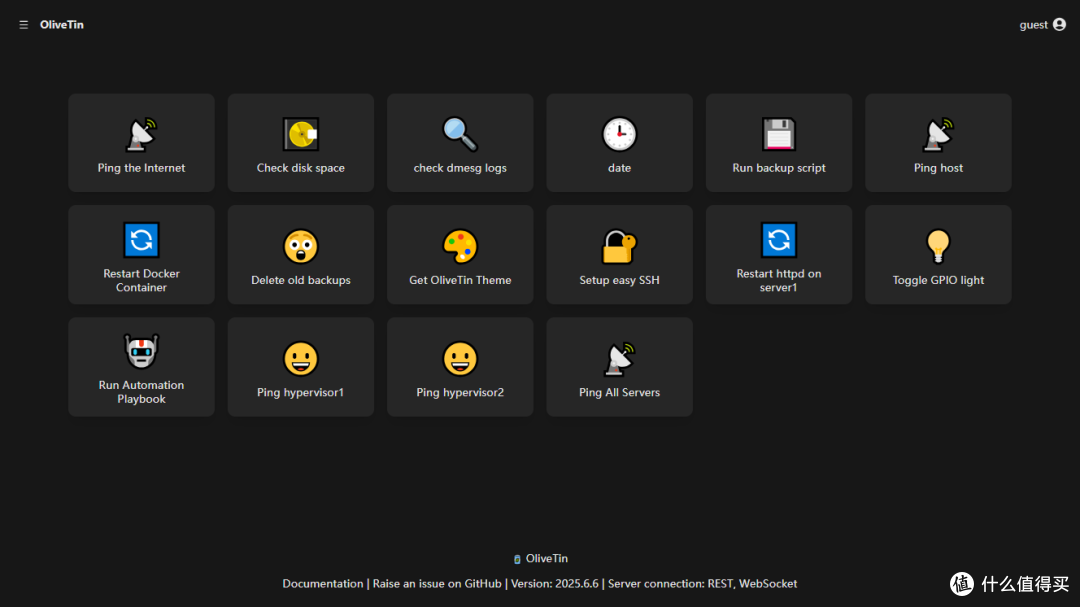
获取主题,有点点复杂简单说一下流程(先去链接选择主题,选中点击能看到仓库地址,下载完成重启应用就行)
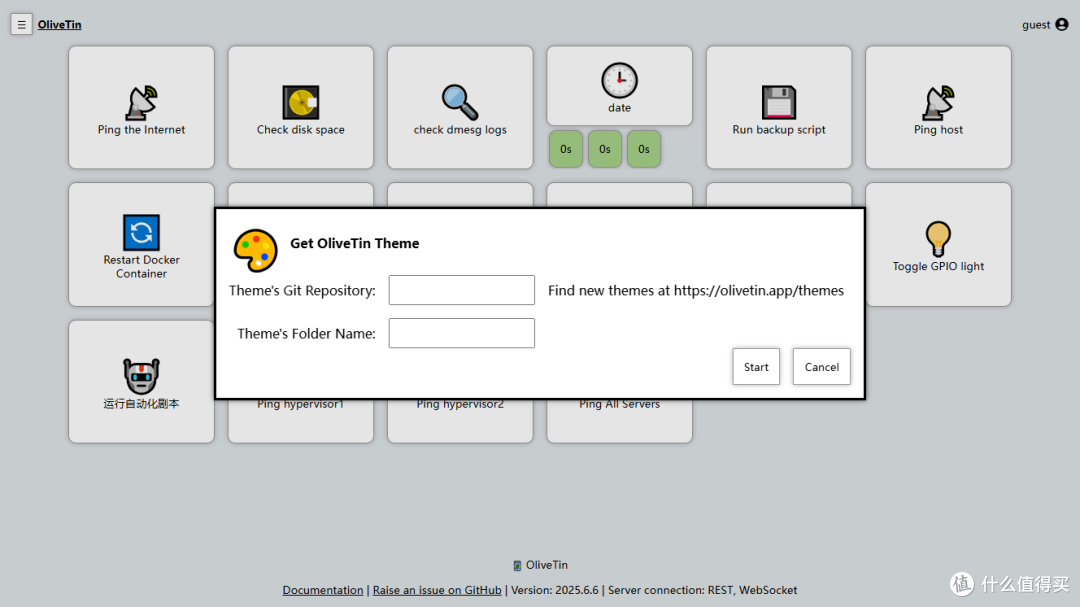
更换后的主题效果
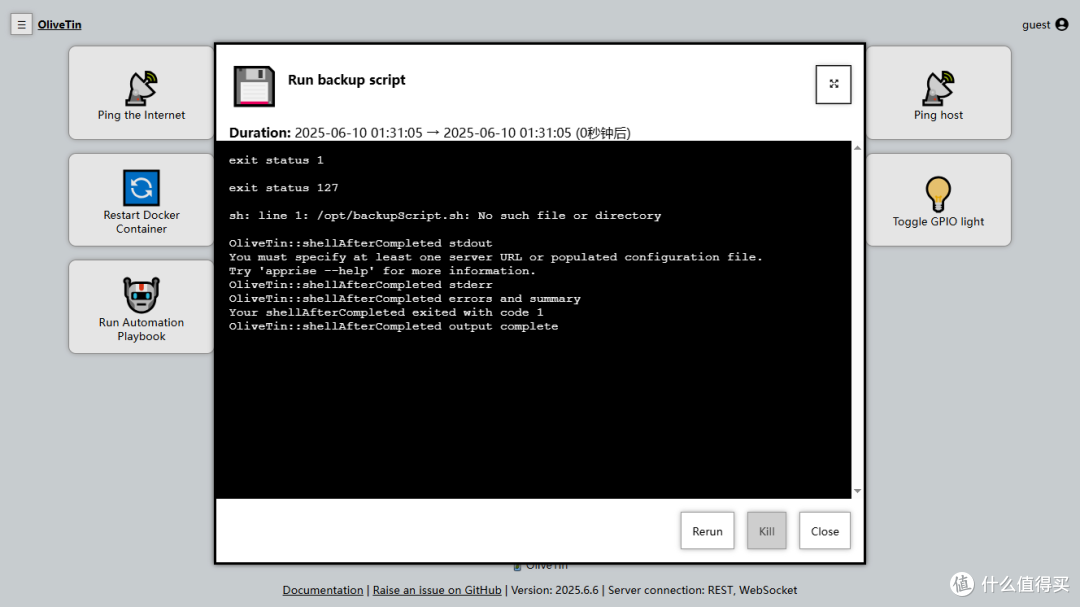
运行 script 脚本,这个只是示例
TIP:
这个工具是需要自己进行配置 config.yaml 文件的,想直接使用是不行的。下面抛砖引玉,简单说说创建并运行脚本。
需求就是,备份 source 文件夹到 backup 目录
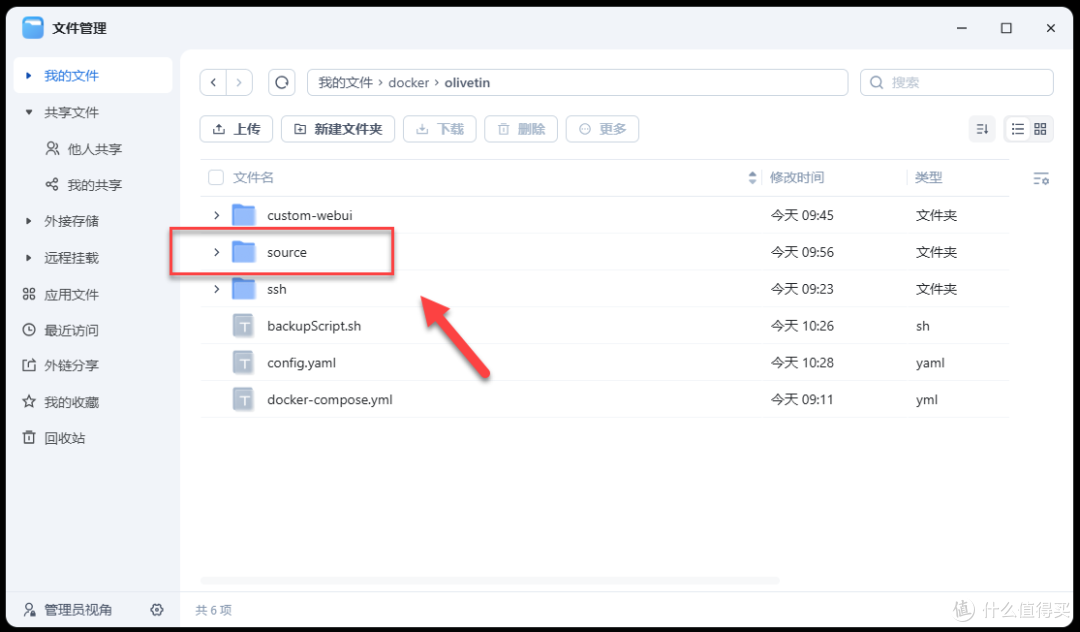
创建 backupScript.sh 备份脚本,放到目录里面
#!/bin/bash

# 源目录,需要备份的文件所在目录
SOURCE_DIR="/config/source"

# 目标目录,备份文件存放的目录
BACKUP_DIR="/config/backup"

# 使用日期创建备份子目录
TIMESTAMP=$(date +%Y%m%d%H%M%S)
BACKUP_PATH="$BACKUP_DIR/backup_$TIMESTAMP"

# 创建目标目录(如果不存在)
mkdir -p "$BACKUP_PATH"

# 执行备份操作,使用 cp 命令复制文件
cp -r "$SOURCE_DIR/." "$BACKUP_PATH"

# 检查备份是否成功
if [ $? -eq 0 ]; then
    echo "备份成功:$BACKUP_PATH"
else
    echo "备份失败"
fi
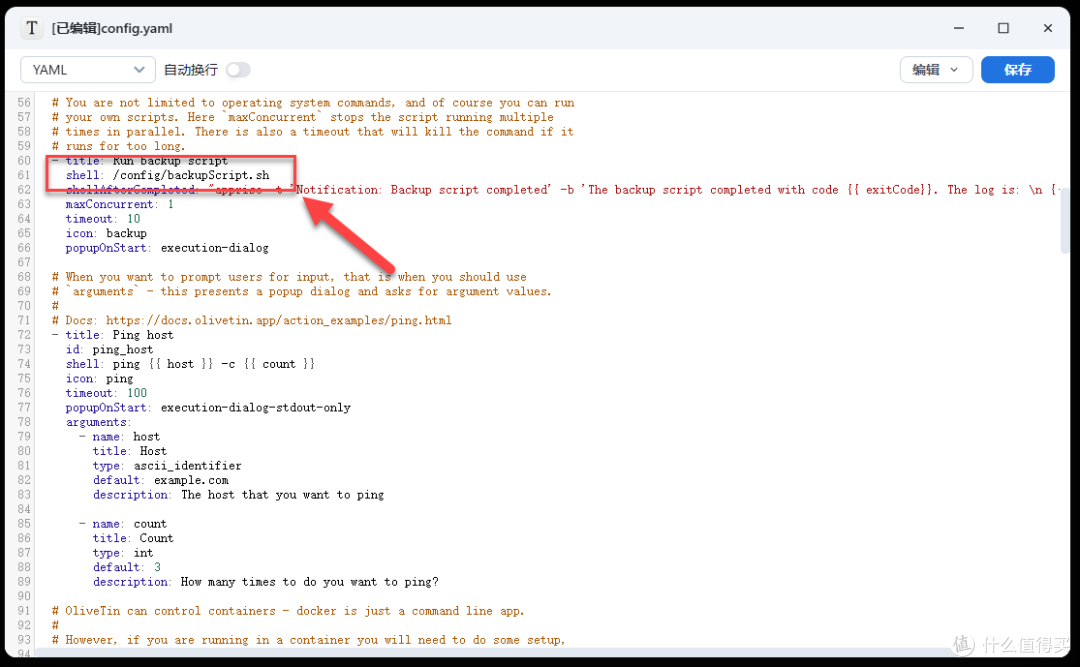
修改原来执行的备份脚本路径
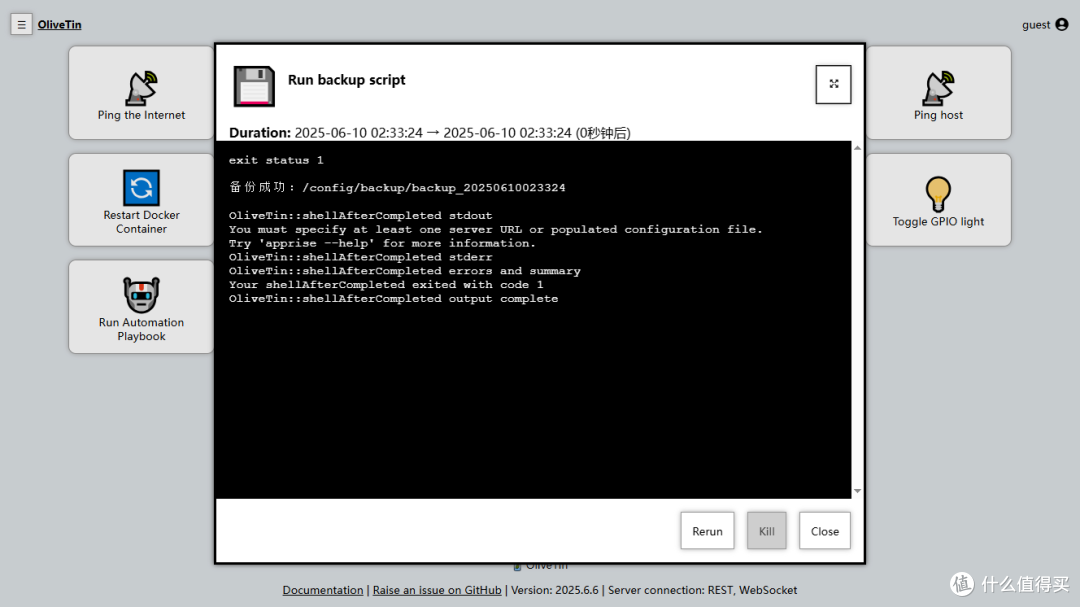
重启容器执行命令,可以看到已经提示成功
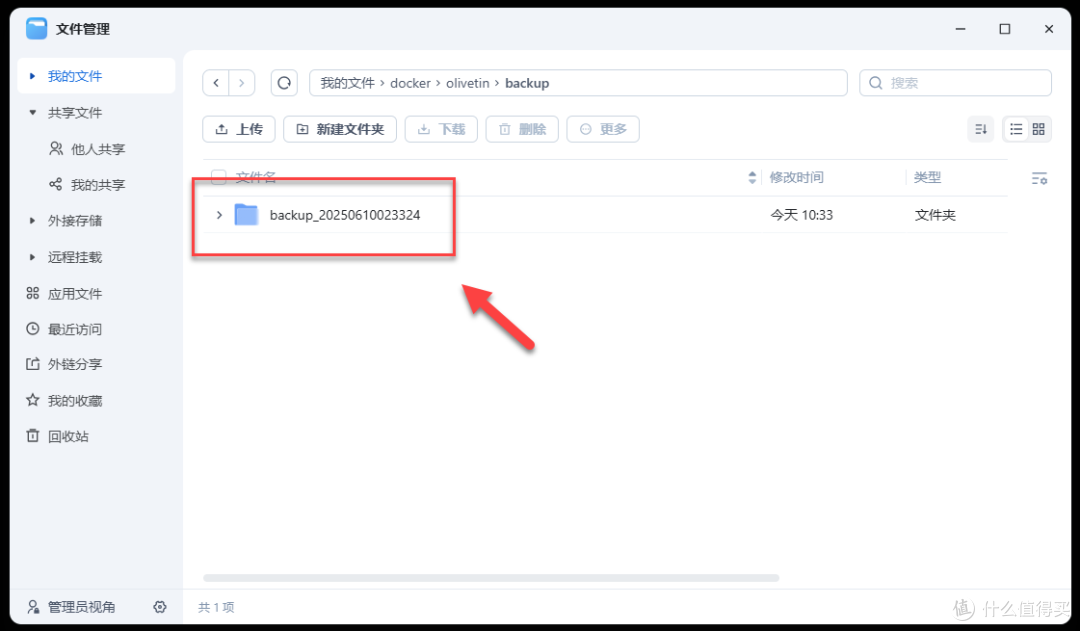
回到文件夹,可以看到已经备份成功了
总结
这款工具可扩展性非常强,上限很高,但是需要有一定的基础不然根本就玩不动。当然我一开始也是不会,直接将 config.yaml 文件上传给 AI,再进行提问修改就好了。
综合推荐:⭐⭐⭐(可拓展性很强)
使用体验:⭐⭐⭐(完全需要自己折腾)
部署难易:⭐⭐(简单)︎
作者声明本文无利益相关,欢迎值友理性交流,和谐讨论~











校验提示文案
校验提示文案